
1
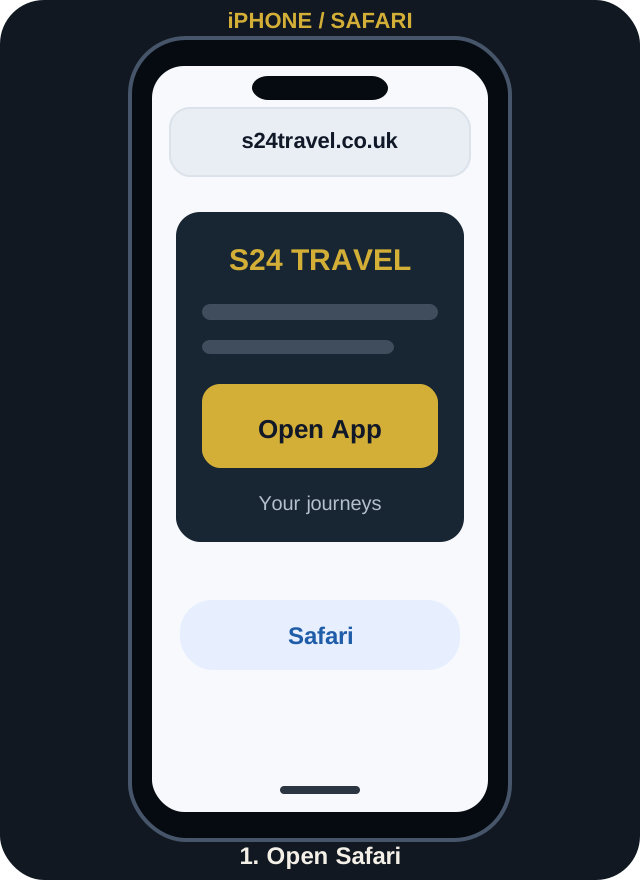
Open the web app in Safari
Tap the Open App button above or enter the address in Safari. If it opens inside WhatsApp or another in-app browser, choose Open in Safari.
Keep your S24 Travel jobs close at hand. Review assignments, open navigation, update journey status and check completed job history from your phone.
https://s24travel.co.uk/driver-appOne tap to open
Add it to your Home Screen
Choose your device and follow the illustrated steps. Installation is free.
Tap the Open App button above or enter the address in Safari. If it opens inside WhatsApp or another in-app browser, choose Open in Safari.
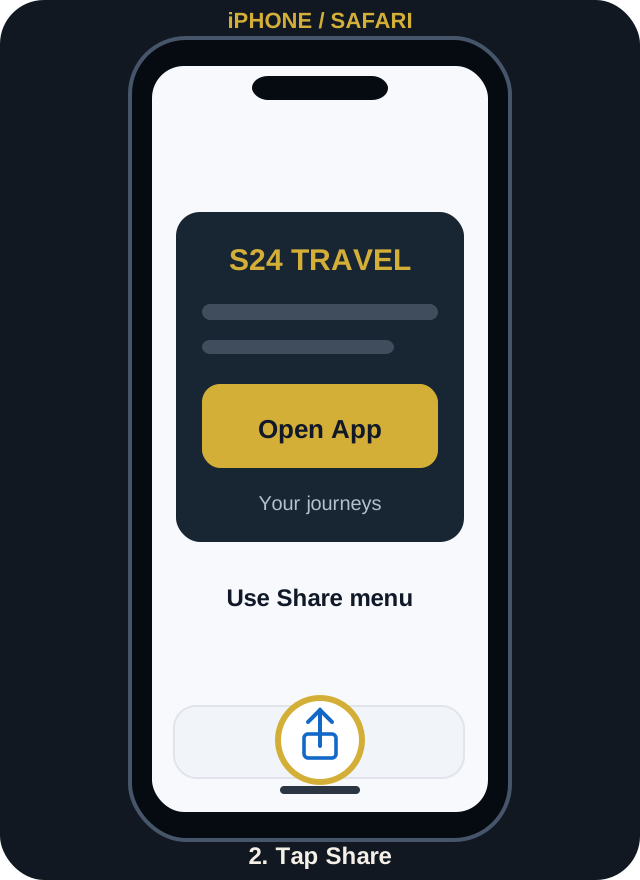
Tap the Share icon (square with an arrow). On newer Safari layouts you may first tap the Page Menu, then Share.
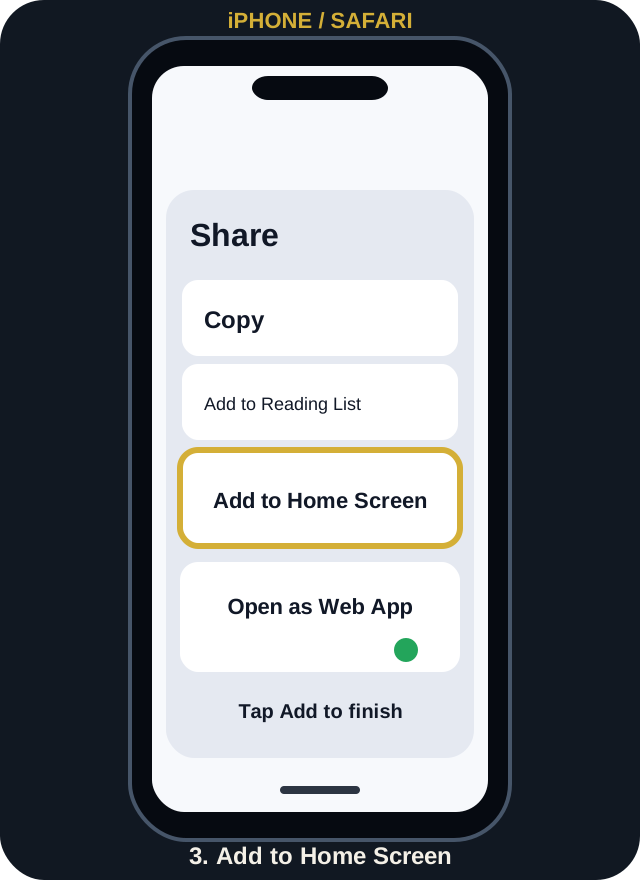
Choose Add to Home Screen. Enable Open as Web App if shown, then tap Add. The S24 icon will appear on your phone.
Illustrations are examples. Your phone's menus may look slightly different.
Need the official device instructions?
Apple Support: Install a Safari web appSign in with your approved S24 Travel driver account. If you cannot see jobs, contact the office to confirm that your driver profile is linked.
No. You don't need the Apple App Store or Google Play Store. Open the website in Safari or Chrome and add it to your Home Screen.
Open the app directly in Safari on iPhone or Chrome on Android, not inside WhatsApp or another app. Ensure your browser is up to date. In newer Chrome versions the menu may say Install and create shortcut.
An internet connection is required to load live bookings, job details, payments and updates. Sensitive information is not saved for offline viewing.
No. Live location sharing is optional. During an active assigned journey, you can tap Start Sharing and permit GPS access. Only authorised Dispatch staff can see your latest position. You can stop at any time; sharing ends when the app is backgrounded or the job finishes. Location fixes disappear from the live map after 90 seconds without updates.
Not reliably in this web-app version. Location sharing works only while S24 Driver stays in the foreground; switching to navigation or locking your screen stops it. Never interact with your phone while driving.
Only jobs assigned to your approved and linked driver account are visible. Ask the office to check your driver account.
Open the app and use your S24 Travel account, or contact our team if you need help.